Planning a trip can be exciting, but organizing all the details can quickly become overwhelming. What if you could have everything—flights, hotels, activities, and transportation—all neatly arranged in one place?
That’s where creating a travel itinerary on Excel comes in. With just a few simple steps, you can build a clear, easy-to-follow plan that saves you time, reduces stress, and keeps your trip on track. Ready to take control of your travel plans and enjoy your next adventure without chaos?
Keep reading, and I’ll show you exactly how to do it.
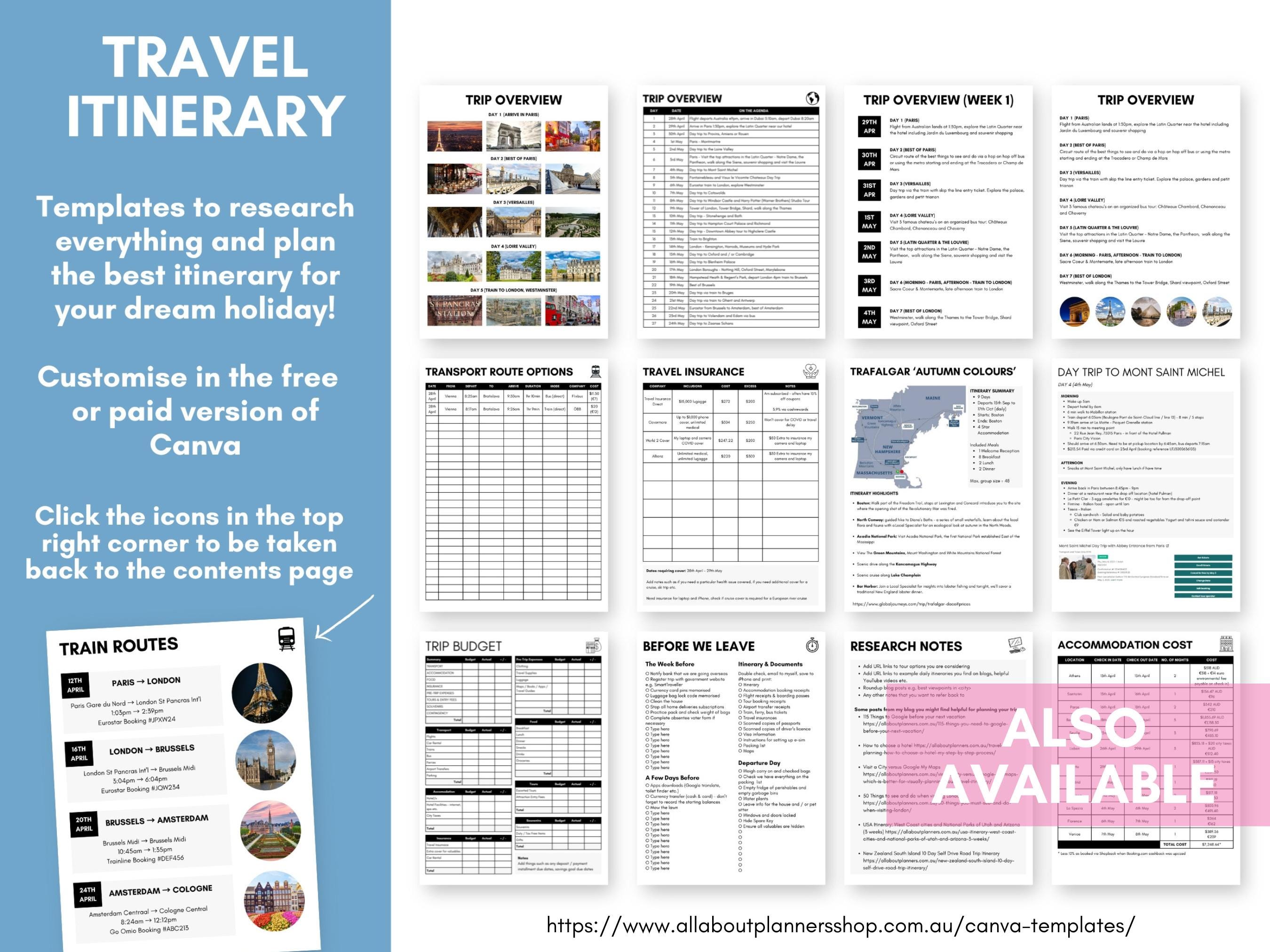
Credit: www.etsy.com
Benefits Of Using Excel For Travel Plans
Excel helps you organize your travel plans clearly. It keeps your schedule, budget, and notes in one place.
You can easily change your plans and see all details at a glance. Excel works well on computers and tablets.
Easy Organization Of Details
Excel lets you list flights, hotels, and activities in rows and columns. You can add dates, times, and costs next to each item.
- Keep all travel information in one file
- Sort or filter data by date or type
- Use color codes to mark important events
Simple Budget Tracking
You can track your spending easily with Excel. It calculates totals automatically so you know your expenses at all times.
| Category | Budgeted Amount | Actual Cost |
| Flights | $500 | $480 |
| Hotels | $700 | $720 |
| Food | $300 | $250 |
| Transport | $150 | $130 |
| Activities | $200 | $180 |
Customizable And Flexible Layouts
You can create your own layout that fits your needs. Add or remove columns, resize cells, and use formulas to calculate dates or costs.
Example of flexible columns:
- Destination
- Arrival Date
- Departure Date
- Accommodation
- Notes
Easy Sharing And Backup
You can save your Excel file online or share it with friends and family. This helps keep everyone informed and your plans safe.
Choosing The Right Excel Template
Using the right Excel template helps you plan your travel itinerary easily. It saves time and keeps your details organized.
There are many templates available online. Some are free, and others require payment. Choosing one depends on your needs and budget.
Free Vs Paid Templates
Free templates are easy to find and cost nothing. They cover basic travel plans but may lack advanced features. Paid templates often offer more options and support.
- Free templates are good for simple trips.
- Paid templates usually have extra tools like budget trackers.
- Free options may have limited design and layouts.
- Paid versions often get updates and customer support.
- Consider how complex your travel plan is before choosing.
Customizable Features To Look For
Choose a template that lets you adjust it to your trip details. Customizable features make your itinerary clear and useful.
| Feature | Why It Matters |
| Editable Dates | Helps track each day of your trip |
| Budget Section | Shows costs and helps manage spending |
| Activity Planner | Lets you list and schedule activities |
| Contact Info Area | Keeps important phone numbers handy |
| Automatic Calculations | Saves time by totaling expenses or days |
Setting Up Your Travel Itinerary Spreadsheet
Creating a travel itinerary in Excel helps you keep all your trip details organized. You can plan your days clearly and avoid missing important activities.
Start by setting up a simple spreadsheet. Use columns and rows to arrange your trip information in an easy-to-read format.
Creating Columns For Key Details
Begin your spreadsheet by adding columns that cover the main parts of your trip. These columns will hold all the important information you need.
- Date of the activity
- Time or duration
- Location or address
- Description of the activity
- Contact details or booking info
Label each column clearly. This makes it easier to enter and find details as you plan your trip.
Using Date And Time Formats
Use Excel’s date and time formats to keep your schedule accurate. This helps with sorting and viewing your itinerary by day and hour.
| Column | Format | Example |
| Date | Date (MM/DD/YYYY) | 05/10/2024 |
| Start Time | Time (HH:MM AM/PM) | 08:30 AM |
| End Time | Time (HH:MM AM/PM) | 10:00 AM |
Set these formats by selecting the cells, right-clicking, and choosing the correct format under “Format Cells.”
Adding Location And Activity Sections
Create separate sections for locations and activities. This helps you track where you will be and what you will do clearly.
| Location | Activity | Notes |
|---|---|---|
| Central Park, NYC | Morning walk | Bring water and sneakers |
| Museum of Art | Visit exhibitions | Buy tickets online |
Use notes to add reminders or special instructions for each activity or place.

Credit: www.highfile.com
Inputting Travel Details Efficiently
Creating a travel itinerary on Excel helps keep your trip organized. Inputting details clearly saves time and avoids confusion.
Excel allows you to arrange your travel plans in rows and columns. This makes it easy to update and review your schedule.
Flight And Accommodation Information
Start by entering your flight details such as departure time, arrival time, and flight number. Add accommodation info like hotel name and address.
Use separate columns for each piece of information. This keeps your data clear and easy to read.
| Flight Detail | Information |
|---|---|
| Flight Number | Example: AA1234 |
| Departure Time | Example: 10:00 AM |
| Arrival Time | Example: 2:00 PM |
| Hotel Name | Example: Grand Hotel |
| Hotel Address | Example: 123 Main St, City |
Transport And Local Activities
List your transport options like buses, taxis, or car rentals. Include local activities with times and locations.
Organize these details in rows to track what you will do each day and how you will get there.
- Transport type (bus, taxi, rental car)
- Pick-up and drop-off times
- Activity name and address
- Start and end times for activities
Meal And Rest Breaks
Plan your meal and rest breaks in your itinerary. Note the time and place for each break to avoid missing them.
Use Excel to add meal times and nearby restaurants or resting spots. This helps keep your energy up during travel.
- Breakfast, lunch, and dinner times
- Restaurant names and addresses
- Rest stop locations and durations
Enhancing Itinerary With Excel Features
Creating a travel itinerary in Excel can be simple and effective. Excel has features that help organize and enhance your travel plans.
Using Excel features, you can easily manage dates, select options, and add important links. Here are some ways to improve your itinerary with Excel.
Conditional Formatting For Important Dates
Conditional formatting highlights important dates in your itinerary. You can use colors to show different events or deadlines.
This feature helps you spot key dates at a glance. It makes planning easier and more organized.
- Red for flights
- Green for hotel check-ins
- Blue for activities
Using Drop-down Lists For Easy Selection
Drop-down lists let you choose options without typing. They save time and reduce mistakes in your itinerary.
You can create lists for destinations, transportation, or meal choices. This keeps your travel plan neat and clear.
- Select cities to visit
- Choose travel modes
- Pick meal preferences
Inserting Hyperlinks To Resources
Hyperlinks in Excel connect your itinerary to important resources. You can link to websites, maps, or booking details.
This feature makes it easy to access information. Just click on the link to view maps or confirm bookings.
- Link to hotel websites
- Connect to flight schedules
- Access travel guides
Tips For Keeping Your Itinerary Organized
Keeping your travel itinerary neat helps you find information quickly. Excel has tools that make organizing easy.
Use simple methods like colors and filters to keep track of your plans. This saves time and reduces mistakes.
Color Coding Different Days Or Activities
Color coding lets you see your schedule at a glance. Assign different colors to days or types of activities.
- Use one color for travel days
- Choose another for sightseeing
- Pick a third for rest or free time
- Highlight important events in bold colors
Freezing Panes For Easy Navigation
Freezing panes keeps headers or dates visible as you scroll. This helps you know which day or section you are viewing.
To freeze panes, select the row or column you want to keep in place. Then use Excel’s Freeze Panes feature.
Sorting And Filtering Data
Sorting and filtering let you organize your itinerary by time, location, or activity type. This helps you focus on what matters.
| Feature | Use |
| Sort | Arrange activities by date or time |
| Filter | Show only certain types of activities |
| Clear Filter | Return to full itinerary view |
Sharing And Printing Your Travel Itinerary
Planning a trip requires careful organization. Sharing and printing your travel itinerary helps keep everyone on the same page.
Exporting To Pdf
Exporting your travel itinerary to PDF allows you to print or save it for future reference. This feature is especially useful when printing boarding passes or hotel reservations.
To export your travel itinerary to PDF, follow these steps:
- Open your travel itinerary in Excel.
- Click on the “File” menu and select “Save As.”
- In the “Save As” window, choose “PDF” as the file type.
- Choose a location to save the PDF and click “Save.”
Collaborating With Travel Partners
Collaborating with travel partners, such as family members or colleagues, requires effective communication. Sharing your travel itinerary helps ensure everyone knows the plans.
To collaborate with travel partners, consider the following options:
- Share the PDF of your travel itinerary via email or messaging apps.
- Use a shared spreadsheet or online travel planner to keep everyone updated.
- Set reminders and notifications to ensure everyone is aware of upcoming events.
Common Mistakes To Avoid
Creating a travel itinerary on Excel can help you stay organized. Avoid mistakes that make your plan confusing or hard to use.
Focus on clear details and keep your sheet easy to read. This saves time and stress during your trip.
Overloading With Information
Adding too much information makes the itinerary hard to read. Avoid crowding your Excel sheet with every detail.
Only include important details like dates, times, places, and contact info. Extra notes can go in a separate document.
- Keep columns simple and clear
- Use short descriptions
- Limit the number of columns
- Use colors sparingly for highlights
Ignoring Time Zones
Not adjusting for time zones can cause missed flights or appointments. Always check the local time for each location.
Include a column for the time zone or convert all times to your home time zone. This helps avoid confusion.
- Note the time zone next to each event
- Use Excel formulas to convert times
- Double-check flight and hotel check-in times
Neglecting Backup Copies
Not saving backup copies risks losing your itinerary. Excel files can get corrupted or accidentally deleted.
Save backups on cloud storage or external drives. Keep multiple versions to track changes and avoid data loss.
- Use cloud services like Google Drive or OneDrive
- Save versions with date stamps
- Email a copy to yourself
- Keep a printed copy as a last resort
Credit: www.etsy.com
Frequently Asked Questions
How Do I Start A Travel Itinerary In Excel?
Begin by creating columns for dates, locations, activities, and notes. Use Excel’s table feature for easy sorting and filtering. This helps organize your trip clearly and makes updates simple.
What Excel Features Help Organize Travel Plans?
Use features like tables, filters, conditional formatting, and drop-down lists. These tools keep your itinerary neat and allow quick adjustments. They improve readability and make planning efficient.
Can I Share My Excel Travel Itinerary With Others?
Yes, you can share the Excel file via email or cloud storage services. Use OneDrive or Google Drive for real-time collaboration. This makes it easy for travel companions to view and edit plans.
How Do I Add Budget Tracking In Excel Itinerary?
Add columns for estimated and actual costs next to each activity or expense. Use formulas to sum totals automatically. This keeps your travel budget transparent and manageable during the trip.
Conclusion
Creating a travel itinerary on Excel saves time and keeps plans clear. You can list destinations, dates, and important details in one place. Excel helps track budgets and reservations easily. Adjust your plans anytime without stress. A well-made itinerary makes trips smoother and more fun.
Start simple, then add more details as you go. Enjoy planning your next adventure with confidence and ease.